Maintain Offered Teaching Entry:
Maintain Offered Teaching Component:
 For more information about offered teaching structures, see Introduction to teaching structures
Contents
Setup Access in the Security Administrator
The following security must be configured to give access to the Offered Teaching module.
teachingStructures
- teachingStructures.offered – Lets user access offered teaching in a read-only capacity. Sub-features allow more access.
- teachingStructures.offered.editOte – Lets user edit OTE information in Offered Teaching. Data filtering and data security (below) may restrict what the user can see or edit.
- teachingStructures.offered.editComponent – Lets user edit component (course and unit) information in Offered Teaching. Data filtering and data security (below) may restrict what the user can see or edit.
- teachingStructures.offered.changeStatus
- teachingStructures.offered.rollover
- teachingStructures.offered.massRollover
- teachingStructures.offered.reports
- teachingStructures.offered.displayEFTS
- teachingStructures.offered.setHolidays
- teachingStructures.offered.setDates
- teachingStructures.offered.cohorts – Lets user access cohort register read-only. Sub-features may allow more access.
- teachingStructures.offered.cohorts.maintain
- teachingStructures.offered.classes – Lets user access class register read-only. Sub-features may allow more access.
- teachingStructures.offered.classes.maintain
- teachingStructures.offered.calculateDerived
- teachingStructures.offered.cloneCourse
- teachingStructures.offered.correspondence – Lets the user send correspondence for Offered Teaching
- teachingStructures.offered.correspondence.add – Lets the user create custom correspondence

teachingStructures.offered.oteData
- teachingStructures.offered.oteData.main
- teachingStructures.offered.oteData.detailsDates
- teachingStructures.offered.oteData.detailsResultKey
- teachingStructures.offered.oteData.detailsOther
- teachingStructures.offered.oteData.participantsMaxMin
- teachingStructures.offered.oteData.participantsSignatory
- teachingStructures.offered.oteData.financeEfts
- teachingStructures.offered.oteData.financeOther
- teachingStructures.offered.oteData.allowances
- teachingStructures.offered.oteData.xref
- teachingStructures.offered.oteData.uda
- teachingStructures.offered.oteData.assessments
- teachingStructures.offered.oteData.documents
- teachingStructures.offered.oteData.documents.deleteAny – Delete any document regardless of who uploaded it.

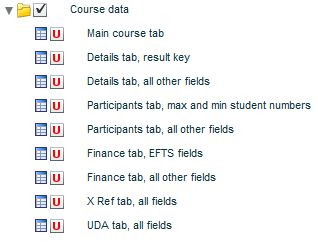
teachingStructures.offered.courseData
- teachingStructures.offered.courseData.main
- teachingStructures.offered.courseData.detailsResultKey
- teachingStructures.offered.courseData.detailsOther
- teachingStructures.offered.courseData.participantsMaxMin
- teachingStructures.offered.courseData.participantsOther
- teachingStructures.offered.courseData.financeEfts
- teachingStructures.offered.courseData.financeOther
- teachingStructures.offered.courseData.xref
- teachingStructures.offered.courseData.uda
teachingStructures.offered.unitData
- teachingStructures.offered.unitData.main
- teachingStructures.offered.unitData.detailsResultKey
- teachingStructures.offered.unitData.detailsOther
- teachingStructures.offered.unitData.participantsMaxMin
- teachingStructures.offered.unitData.participantsOther
- teachingStructures.offered.unitData.xref
- teachingStructures.offered.unitData.uda

Search for an Offered Teaching Item
Use these steps to search for an item within the offered teaching structure, i.e. a programme, stage, level, course or unit, if you know all or part of the name or ID of the item.
1
Select Teaching Structures > Offered.
Result: The items currently in the offered teaching structure appear in the left panel.
You can automatically filter the results that are returned by setting your user preferences, e.g. item status, reporting year, etc. For more information see Setting User Preferences
2
Click the Search tab.
3
Type the name or partial name in the search field
If known you can filter further by selecting the radio button for the type of item you are looking for and selecting, ID, Name or MOE Code from the drip down list.
4
Click Search.
Result: A list of items that match the search criteria displays.
5
Click on an item to display its details.
Result: Information for the highlighted item displays.
View Components of an Offered Teaching Item
Use these steps to view the specific components that make an item in the offered teaching structure. For example, you can see all the stages, levels, courses or units that are attached to an offered programme.
1
Search for an Offered Teaching Item you wish to view.
2
Show or hide the components of the selected item, as follows:
To …
Then …
show the components of the displayed item
click next to the item symbol. If there is no arrow, there are no component items for the item.
hide the components of a displayed item
click next to the item.
3
Click on an item to display the details.
Next Step
After searching for an offered teaching item, you can: