Contents
Introduction to Funding Budget
The funding budget functionality has been developed to assist decision making around the most appropriate funding source to use for a learner. To make use of this capability two steps must be taken before the start of enrolments for an academic year:
- Setup budget projections for the current year
- Create a budget projection
- Edit a budget projection
- Delete a budget projection
- Rollover budget projections
- Assign weightings to funding sources
- Add weightings to funding sources
- Update a funding source weigthing
- Delete a funding source weigthing
 The individual making use of this guide is assumed to have:
- access to the Client and System Manager sections of Artena
- an understanding of the individual Funding Sources
- access to the budget projections for their institution
If you choose not to make use of the funding source allocation functionality, the funding source will default to the value assigned to the relevant qualification in Prescribed Teaching.
Setup Access in the Security Administrator
The following security must be configured to give access to maintain the funding budget.
system
system.systemManager
system.systemManager.fundingbudget
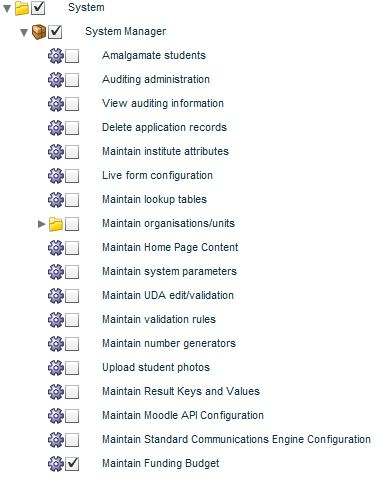
Create a Budget Projection
Use these steps to setup the budget projections for the current year.
1
Navigate to System > System Manager > Funding Budget.
2
Select the Year that you want to add the budget projections for.
3
Click Add.
4
Complete the required fields:
Field | Description |
|---|---|
Source | Click |
Category | Click |
Status | Click |
$/EFT | This amount will auto populate based on the amounts in the lookup table and may be modified if required. |
Students | Add the projected student count. |
Budget | Add the projected total funds allocated.
|
 to select the funding source.
5
Click Save.
Result: The Budget Projections have been added and saved to the system.
What next?
After creating a budget projection, you can:
roll this years budget projections from the year selected to the next year, see Roll over budget projections