Service Account
This is a domain user account that is used to run the IIS Application Pool or the Apache Service and connect to the database.
For the purpose of this document “test\artena” is used.
To create a new domain user account use the Active Directory Users and Computers tool.
Give the account an appropriate name, for example, artena. Clear the User must change password at next logon and select Password never expires.
Use a strong password for the account. Strong passwords should include at least seven characters with a mixture of uppercase and lowercase letters, numbers, and other characters such as *, ?, or $.
On this page:
Web Server and PHP Setup
Refer to the WAP Deployment Guide for detailed setup instructions. Check the Release Notes for information on new/required version of WAP for the current ArtenaREST release.
A different version of the web application is available for WAP 6 and 7.
Getting the Release
The release is available from the ADAPT IT Release Repository at
https://repo1.smss.org.nz/svn/ArtenaRelease/ArtenaREST/releases
Checkout the web application files that match your web server and PHP version within the existing wap_artena structure on C: drive.
This should result in the following folder structure being created:

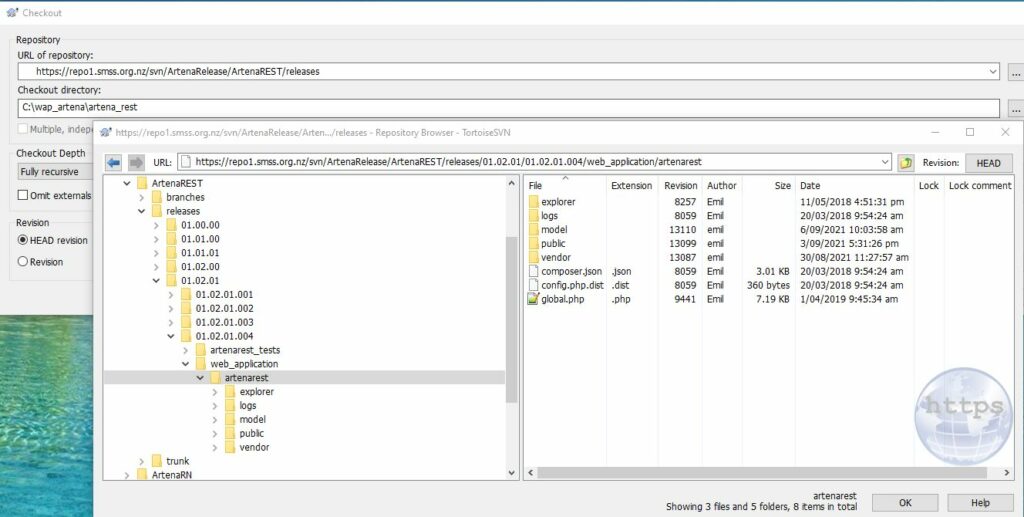
You can use any SVN client, but we recommend TortoiseSVN. It integrates into the Windows shell and makes installs and updates very easy. For example to checkout the latest build available at the time of writing do the following:
1
Right-click the artena_rest folder in Windows Explorer and select SVN Checkout
2
Enter the URL of the repository https://repo1.smss.org.nz/svn/ArtenaRelease/ArtenaREST/releases and click the browse button
3
Authenticate with the credentials provided making sure to tick the Save authentication check box
4
Browse to the URL of the latest build in the repository and select the web application files that match your web server and PHP version
5
Click OK to close the Repository Browser dialog
6
Click OK to checkout the release
File System Permissions
The test\artena service account must be given the permissions as indicated above. The Read & Execute, List Folder Contents, and Read permission should apply recursively. Additionally the PHP logs, sessions, and temp folder require Write permissions, as does the ArtenaREST cache and logs folders.
Log Database Setup
The application debug and error log is kept in a SQLite database. The log database is located in C:\wap_artena\<artena_api_folder>\logs\artenarest.log.db SQLite database file.
On initial setup copy the database file
C:\wap_artena\<artena_api_folder>\logs\artenarest.log.db.dist to
C:\wap_artena\<artena_api_folder>\logs\artenarest.log.db