Public Trust requires each Study Contract to have its own Student Fee Trust Account. Use these steps to mark an individual Study Contract for sending to Public Trust and assignment of a Student Fee Trust Account number.
1
Navigate to and select the Study Contract for the student whose details will be sent to Public Trust. See Display a study contract
2
Click the Public Trust tab.
Result: The Public Trust Status Change History displays.
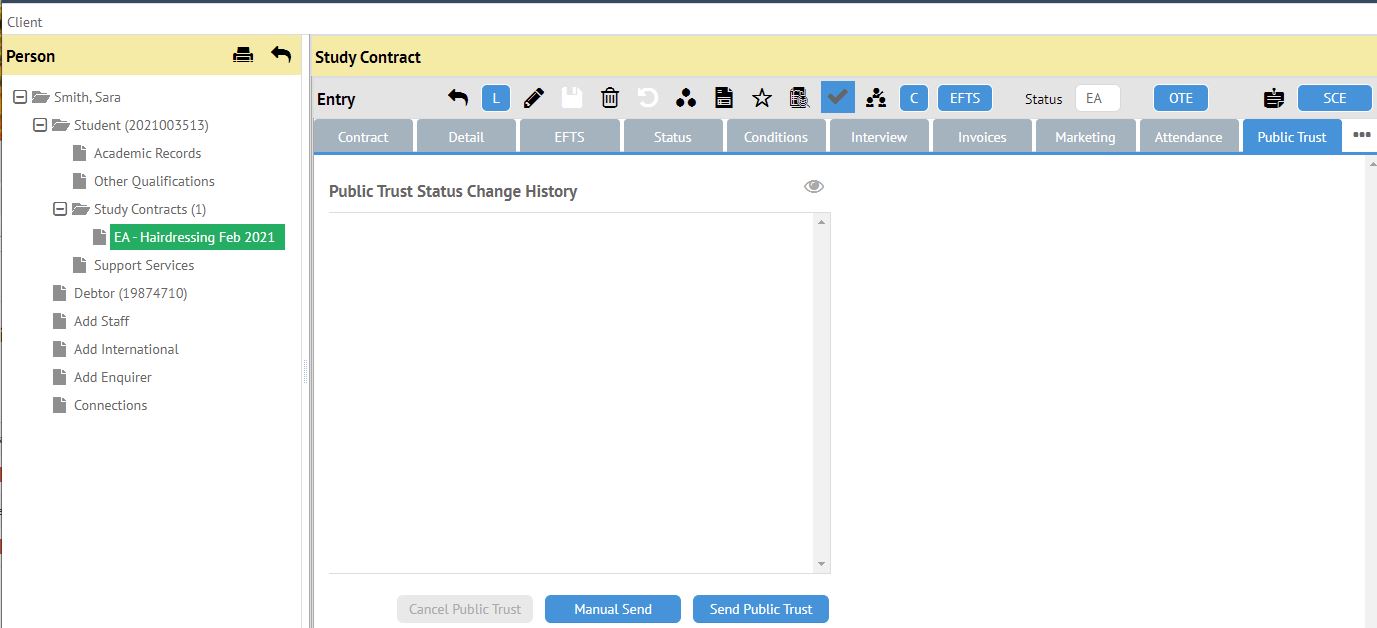
3
Click the Send Public Trust button.
Result: The Send Public Trust screen displays.
4
Complete the required fields:
Field
Description
Programme Length
The length of programme defaults from the Offered Teaching Entry Length (weeks) and can be updated if required.
Amount (Tuition, Accommodation, Living Expenses, Bailment, Health & Travel) fields
This can be modified from the default value which is the sum of Study Contract invoice components where the corresponding Fee type is marked as a Public Trust amount for the same type.
Start date (Tuition, Accommodation, Living Expenses, Bailment, Health and travel) fields
This can be modified from the default value which is the Study Contract Start Date.
Duration (Tuition, Accommodation, Living Expenses, Bailment, Health & Travel) fields
This can be modified from the default value which is the length of the Study Contract OT Entry.

If a read-only field is blank or incorrect, the original field in the Person, Student or Study Contract record must be modified first.
At least one of the amount fields must contain an amount greater than zero.
If an amount field contains an amount greater than zero, the corresponding Start date and Duration must be entered.
5
Click Save.
Result:
If there are…
then…
any errors
the appropriate error message displays
click OK.
no errors
the details are marked for sending
the Public Trust status will be set to Awaiting Extraction
the status and details can be viewed in the Public Trust Status Change History,