Use these steps to create a batch of Qualification requests or Qualification checks to be sent to NZQA. A batch of requests for certificates or a batch of requests for checking the progress towards a qualification (qual checks) can be created.
Setup Access in the Security Administrator
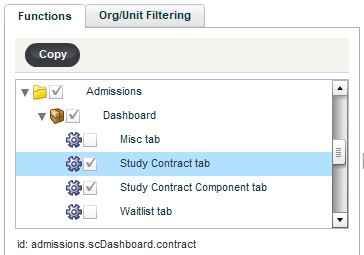
The following security must be configured to give access to create the export file to request a student’s record of achievement.
admissions.scDashboard.contract
admissions.scDashboard.component
teachingStructures.nzqa.maintain – Lets user create NQF and non-NQF files, generate, edit and reverse batches, and change history

1
Navigate to Admissions > Dashboard > Contract.
Result: The Study Contract Dashboard displays, with a blank grid.
2
Click in the Group field to select a saved query for the study contract group you require, or run a query and search to Create a group of study contracts.
Result: A list of students is displayed
3
From the list of Actions select NZQA Qual and click Perform Action.
Result: The Choose NZQA Request Type window is displayed.


4
Complete the required fields:
Field | Description |
|---|---|
Qualification Check or Certificate Request (radio buttons) | Click to select whether to create a batch of requests to check the status of students/qualifications or a batch of requests to issue certificates for all successful students. |
Include Nested Qualification (tick box) | Click to tick the box and include all Nested Qualification Person Qualifications, where they are NZQA qualifications, associated with the root Programme of the contracts in the selected set. |
Include records previously submitted for Certificate Request (tick box) | If not ticked, any Person Qualifications from the batch that have previously been sent to NZQA for a certificate request will be excluded. Click to tick the box and resubmit these as part of this batch .
|
5
Click Save.
Confirmation message: Proceed with processing?
6
Respond OK or Cancel.
Result: NZQA batch header is displayed.
7
Create NZQA Batch Header.
 This is the same popup that would be displayed if you were attempting to create a NZQA Unit batch. Note that this File Type is QE1.

8
Click Save.
Next Step
The batch is saved to the NZQA batch list and you are able to Generate a Batch of NZQA Records.