Enter Title and link accordingly
The Study Contract Components Dashboard is a quick way of processing many students’ study contract components at once. Sometimes it is desirable or necessary to work with a group of study contract components rather than having to access each one individually, e.g. when taking a set of enrolments in a course at a common status to a new common status. The dashboard allows you to do this.
You can perform the same processes in the dashboard as those in the Study Contract Components area, see Introduction to study contracts, as well as additional operations. The processes in this dashboard mirror those in the Study Contract Dashboard, see Maintain study contracts via dashboard.
To use the Study Contract Components Dashboard, you first perform a query that generates a group or set of study contract components. You can then add or remove individual study contracts’ components to or from this group during processing. You can also save or delete the groups as part of processing.
Setup Access in the Security Administrator
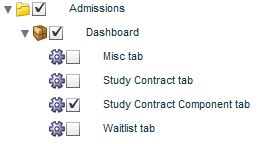
The following security must be configured to give access to the Study Contract Components Dashboard.
admissions
- admissions.scDashboard
- admissions.scDashboard.component
Create a Group of Study Contract Components
Use these steps to create a group of study contract components for processing.
1
Navigate to Admissions > Dashboard > Component.
Result: The Study Contract Components Dashboard displays, with a blank grid.
2
In the Select tab, complete the required search fields:
* indicates mandatory fields.
Field
Description
Entry *
Click to select the Offered Teaching (OT) Entry or entries.
SC Status
Click to select the study contract status you want the system to search on.
Sub Status
Click to select the study contract sub status you want the system to filter on.
Cohort
Click to select the cohort(s) you want the system to search on.
Include all OTEs
Click to tick the box. If this is ticked, the fields above are disabled and any selections are cleared. The course selection below will consist of all courses.
If left unticked, the fields above remain enabled. The course selection below will then consist only of the courses associated with the selected OT Entries.
Component
Click to select the courses you want the system to search on.
SCC Status
Click to select the study contract component status you want the system to filter on.
Sub Status
Click to select the study contract component sub status you want the system to filter on.
Class
Click to select the class(es) you want the system to search on.

For more information on statuses and sub statuses, see Introduction to study contracts
The more fields you fill in, the narrower your prospective group of study contracts.
- Click Add to Selection to add each selection to the OT Selection panel.
- To clear all items from the OT Selection panel, click Clear Selection.
- To clear a single selected item from the OT Selection panel, click Remove from Selection.
3
Refine your search with the available flags by completing the required search fields:
Click the Flags and Finance tab and complete the required search fields:
Flags
Field | Description |
|---|---|
Main Venue | Click to select the main course delivery site for the system to search on. |
Full/Part Time | Click to select your requirement regarding whether the study contract is full or part time, which will add criteria based on the relevant values in the study contracts, debtor and aged debt tables. |
MOE Status | Click to select the study contracts’ Ministry of Education (MOE) ‘statistics complete’ flag for the system to search on. |
NSI Status | Click to select the students’ NSI status for the system to search on. |
ID Card | Click to select the status of the ID card for the system to search on. |
Finance
Field
Description
Financial States
Click to select the study contract financial state for the system to search on.
Debtor Details
Click to select the debtor balance details, which will add criteria based on the relevant values in the study contracts, debtor and aged debt tables.
Aged Debt Status
Click to select the aged debt status, which will add criteria based on the relevant values in the study contracts, debtor and aged debt tables.
4
Click the SC and PQ tab and complete the required search fields:
Contract Conditions
Field
Description
Entry Conditions Apply
Click to select your requirement regarding whether entry conditions apply to the study contracts, which will add criteria based on the relevant values in the study contracts.
Entry Conditions Met
Click to select your requirement regarding whether the entry conditions have been met, which will add criteria based on the relevant values in the study contracts.
Interview Required
Click to select your requirement regarding whether an interview is required, which will add criteria based on the relevant values in the study contracts.
Iwi Support
Click to select your requirement regarding whether iwi support is required for the study contract, which will add criteria based on the relevant values in the study contracts, debtor and aged debt tables.
Expected to Finish this Year
Click to select if the study contract is expected to finish this year.
Person Qualification Conditions
Field | Description |
|---|---|
NZQA Qualification | Click if the study contract is for a programme or level representing an NZQA qualification, which will add criteria based on the relevant values in the study contracts. |
PQ Status | Click to select your requirement regarding the status of the person qualification, which will add criteria based on the relevant values in the study contracts. |
PQ success | Click to select whether the person qualification has been marked successful, which will add criteria based on the relevant values in the study contracts. |
5
Click the Academic tab and complete the required search fields:
Field | Description |
|---|---|
Registered at NZQA | Click to select your requirement regarding whether the students are registered with NZQA. |
International Student | Click to select your requirement regarding whether the students are international students. |
Has a Valid Email | Click to select your requirement regarding whether the students have an email address. |
Disability | Click to select your requirement regarding whether the students have a disability. |
6
Click Search to run query.
Result: The search results display in the following fields in the Group panel:
Field
Description
Student
The name of the student, in Surname, First Name(s) format.
Student ID
The ID of the student.
Student NSN
The National Student Number (NSN) of the student.
ST
The current status of the study contract component.
SU
The current substatus of the study contract component.
Class
The assigned class.
Class UID
The class’s unique identifier.
OTC UID
The OTC’s unique identifier.
Person UID
The person’s unique identifier.
Teaching
The name of the Offered Teaching Components.
Note: The search result will include students who are enrolled in the selected courses, regardless whether they are enrolled in the selected OT Entries.
7
Choose from the following options, if required:
To… | then… |
|---|---|
Remove any study contract components that you don’t want to include in the group |
Note: To bring back the removed records, click Back and Search again. |
Keep selected study contract components only |
Note: To bring back the removed records, click Back and Search again. |
8
To save the group for future use, click Add Group.
Result: The Save Dashboard Group window displays.
9
Complete the required fields:
Field | Description |
|---|---|
Name * | Type the name of the group you want to save the study contract components under. |
Description | Type a brief description of the group. |
10
Click Save.
Result: The new group name displays in the Group field.
Next Step
After creating a group of study contract components, you can: