Introduction to Artena Enquiries
Navigation
Event history
Product map
Mailing components and bulk printing
Maintain Bulk Printing for Enquiries
Maintain Records via the Marketing Dashboard
Enter Title and link accordingly
The Enquiries module captures enquiries from prospective students and fulfills those enquiries with information. It is part of the Marketing module, but some procedures can also be done from a person record.
For information on marketing campaigns, see Introduction to marketing campaigns
Setup Access in the Security Administrator
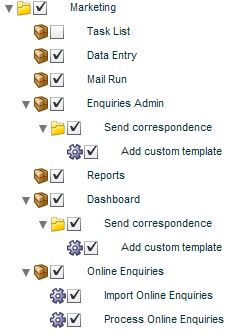
The following security will allow full processing for Enquiries.
marketing
- marketing.enquiriesDataEntry
- marketing.printRuns
- marketing.enquiriesAdmin
- marketing.enquiriesAdmin.correspondence – Send correspondence
- marketing.enquiriesAdmin.correspondence.add – Create custom correspondence template
- marketing.marketingReports
- marketing.marketingDashboard
- marketing.marketingDashboard.correspondence – Send correspondence
- marketing.marketingDashboard.correspondence.add – Create custom correspondence template
- marketing.onlineEnquiries
- marketing.onlineEnquiries.importOnlineEnquiries
- marketing.onlineEnquiries.processOnlineEnquiries
client.person – Enables person search, and is required for any user that works with person, student or enquirer information directly.
- client.person.enquirer
- client.person.enquirer.create
- client.person.enquirer.viewEvent
- client.person.enquirer.editEvent
- client.person.enquirer.contactlog – Lets the user read the contact log
- client.person.enquirer.contactlog.maintain – Lets the user maintain contact log attached to enquirer
- client.person.enquirer.contactlog.maintainAll – Lets the user maintain all entries in this contact log
- client.person.enquirer.contactlog.delete – Lets the user delete entries in this contact log
- client.person.enquirer.correspondence – Lets the user send correspondence for enquirer
- client.person.enquirer.correspondence.add – Lets the user create custom correspondence

Enquirers and Enquiries
An enquirer is a person who enquires about something, e.g. a prospective student requesting course information.The first step in entering an enquiry is always identifying the appropriate enquirer on the system, possibly creating the enquirer if they are not there. See Create or maintain enquirers
 If a person is already entered on the system, they do not need to be created separately as an enquirer.
An enquiry is a specific contact made by an enquirer, requesting information. Over time, a single enquirer may make several enquiries. Multiple enquiries by an enquirer can be processed concurrently. See Enter enquiry
An enquiry is made up of different pieces of information, as follows:
A selection of mailing components that should be sent to the enquirer. The system captures this information at enquiry entry time, and at a later stage facilitates the generation of any required mailing packages. A ‘package’, if one is required, can be either uplifted (taken away by the enquirer in person) or mailed to the enquirer later.
A key concept here is that a mailing package does not need to be assembled at the time of the request. It is assembled later, when all the requests are processed at one time. Mailing packages may also be marked to be printed from a specific or any campus, as set in the MKTG_PRINTCAMPUS_CSV system parameter. See System parameter details. This allows division of labour amongst different people, and is much more time efficient than assembling the mailing packages one at a time. See Manage bulk printing
Information gathered for marketing and reporting purposes. For example, whether the enquirer wants to be full time or part time, what campus they prefer, if any. These are optional values. See Enter enquiry
Product information that records the areas of interest that were enquired about. This is used for reporting and future campaigns. See Maintain products for enquiries
The Enquiries Data Entry area in the Marketing module uses a vertical Navigation bar to show the steps you have chosen. You can click on a green step to go back to that screen in Enquiries. This allows you to toggle between screens, e.g. to toggle between creating an enquiry event and entering the enquirer’s personal details, when an enquirer is relating information to you over the phone.
You can also use the Navigation bar to close a step’s screen. Click in the top-right corner of a yellow step to close, or exit, from that screen. To go back several steps, click on the step below the screen you want to show.
Event History
The structure of an enquirer’s record of enquiries, or event history, is represented visually in Artena by means of a ‘tree view’. This is found in the Event Viewer screen for each enquirer.
The following symbols are used to indicate the structure of items within the tree:
Symbol | Indicates… |
|---|---|
| A right arrow beside an item in the tree indicates that the item is a ‘parent’ item, with a number of components hidden beneath it. To view them, click on the |
| A down arrow beside an item indicates the item is fully open, with no items hidden beneath it. To close the item, click on the |
If there is nothing next to the item, the item has no associated ‘children’ items. |


Each item in the tree is represented by an icon:
Item | Icon | Meaning |
|---|---|---|
Enquiry |
| A record of a specific enquiry made by an enquirer. The date of the enquiry also displays. |
Mail Request |
| An action of an enquiry that requires components, such as a brochure, to be mailed to an enquirer. |
Response |
| A record of a response to a specific marketing campaign (campaign activity) made by an enquirer. The date the response was recorded also displays. |
| A record of the components that is included in a Mail Request such as the individual brochure. |


Product Map
Products are the components about which an enquiry is made, e.g. a course of study. They are defined by your tertiary education organisation and are organised and maintained using a Product Map. The structure of the Product Map is represented visually in Artena by means of a ‘tree view’. This is found in Marketing > Enquiries Administration, on the Products tab, on a panel on the left of the screen.
The following symbols are used to indicate the structure of items within the tree:
Symbol | Indicates… |
|---|---|
| A right arrow beside an item in the tree indicates that the item is a ‘parent’ item, with a number of components hidden beneath it. To view them, click on the |
| A down arrow beside an item indicates the item is fully open, with no items hidden beneath it. To close the item, click on the |
If there is nothing next to the item, the item has no associated ‘children’ items. |
Products can be created and added to the Product Map as one of two types:
Product type | Description |
|---|---|
Sibling product | A product added at the same level as the currently selected product. |
Child product | A product added at the level immediately below the currently selected product. |
Mailing Components and Bulk Printing
A mailing component is an item that can be requested by an enquirer, e.g. a course brochure. These can either be uplifted (collected in person) by the enquirer or mailed to the enquirer. For more information, see Maintain mailing components
Mailing components can either be:
Type | Description |
|---|---|
Stock | Components generated outside of Artena, e.g. a course book. |
Personalised | Components printed with the enquirer’s details on it, generated by Artena, e.g. a course letter. |
The requests for information or packages are collected in batches by Artena, and are processed in the Print Run Management area of the Marketing module. See Manage bulk printing