Contents
Introduction to View Student’s Academic Progress
Academic records are used in Artena to capture details of students’ academic progress. You can view a student’s progress on a course and perform an audit to see how close they are to completing a qualification. For more information, see Introduction to academic records
This section covers:
Setup Access in the Security Administrator
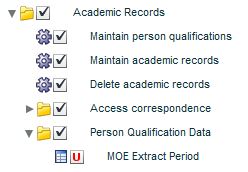
The following security must be configured to allow you to view a student’s academic progress. Add additional security to maintain the academic records if required.
client.person.student.academicRecords
- client.person.student.academicRecords.maintainPersonQuals
- client.person.student.academicRecords.maintainAcademicRecords
- client.person.student.academicRecords.deleteAcademicRecords – Lets the user delete academic records included in a submitted SDR
- client.person.student.academicRecords.correspondence – Lets the user send correspondence for academic record
- client.person.student.academicRecords.correspondence.add – Lets the user create custom correspondence
- client.person.student.academicRecords.pqData
- client.person.student.academicRecords.pqData.moeExtract
View a Student’s Progress on a Course
Use these steps to display a student’s academic progress on a course. For courses which have units attached, this process lets you view a summary of a student’s progress in relation to the requirements for completing the course. It lists the student’s achievements to date in the mandatory and optional units which constitute the course.
 You can also view academic records for a student via a study contract or study contract component. For more information, see Introduction to academic records.
1. Navigate to Client > Person > Student > Academic Records. To search for the person record. See Create or maintain person record
Result: The Academic Records screen displays.
2. In the Programme/Level/Stage grid, click to select the programme, level or stage required, which will highlight.
Result: The academic records associated with that programme, level or stage display in the Academic Records grid.
3. In the Academic Records grid, click to select the study contract component or miscellaneous academic record for which you want to display the progress information, which will highlight.
4. Click T (Show Course Total).
Result: The Total of Units for Course window displays:
Field
Description
Required
The credit value of the mandatory and optional units that are required for the course displays.
Awarded
The credit value of the mandatory and optional units that the student has currently completed (been awarded) for the course displays.
If the selected course does not have units attached to it, then the system displays the message, ‘The selected course does not have any units attached to it’.
5. Click OK.
Result: The Academic Records screen displays.
Next Step
After viewing an AR from a student record, you can: