This section explains how to record and manage health services accessed by a student, e.g. nurse or doctor visits or to record the Covid-19 Vaccination Verification status.
This section covers:
Add a Student’s Health Record
Edit a Student’s Health Record
Delete a Student’s Health Record
1
Navigate to Client
2
Search for the person record against which the health event is to be recorded. See Maintain Person Record
3
Double-click on the person’s name to open the record.
4
Click Support Services in the left panel.
5
Click the Health tab.
6. Click Add Item.
Result: The Add Health Record window displays.
7. Complete the required fields:
* indicates mandatory fields.
Field | Description |
|---|---|
Support Provider * | Click to select a provider. For Covid-19 Vaccination Verification select provider:
|
Health Type * | Click to select a health type. For Covid -19 Vaccination Verification the Health Type is:
|
Health Support * | Click to select the health support. For Covid-19 Vaccination Verification the Support Types are:
|
Study Contract | Click to select the study contract. This field is not required for the Covid-19 Vaccination Verification. |
Start Date * | The date defaults to the current date but can be edited to record the date the health event occurred. For the Covid-19 Vaccination Verification this is the date the health record was created. |
End Date | The date defaults to the current date but can be edited to record the date the health event occurred. For the Covid-19 Vaccination Verification use this field to record the Expiry date. |
Duration (minutes) | Type the amount of time that the event took place. |
Hourly Rate | Type the cost per hour. Note: The total cost is automatically displayed in the Total field, computed as the product of the Time (minutes) converted to hours and the Hourly Rate. |
Total | This number is calculated from: duration (minutes) x hourly rate |
Notes | Type any information about the health event. |
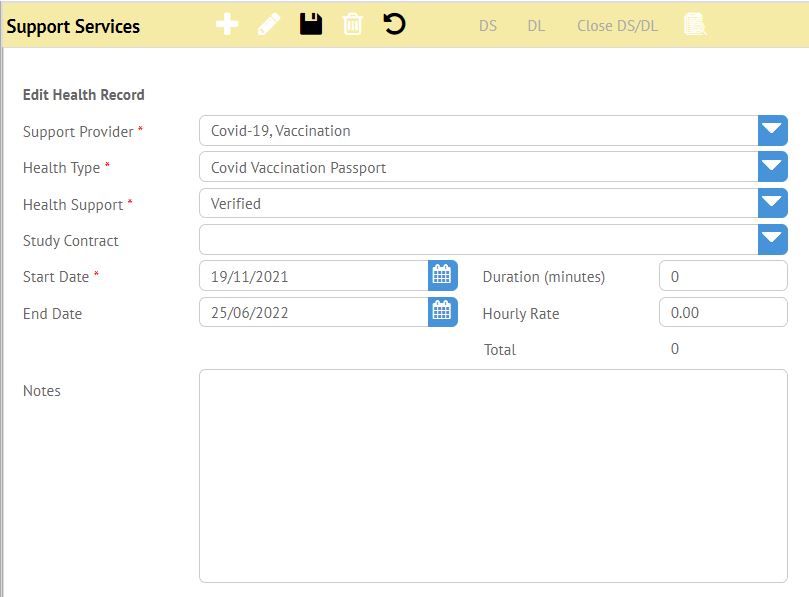
8. Click Save to record the information.
Result: The information displays in the grid on the Health tab.
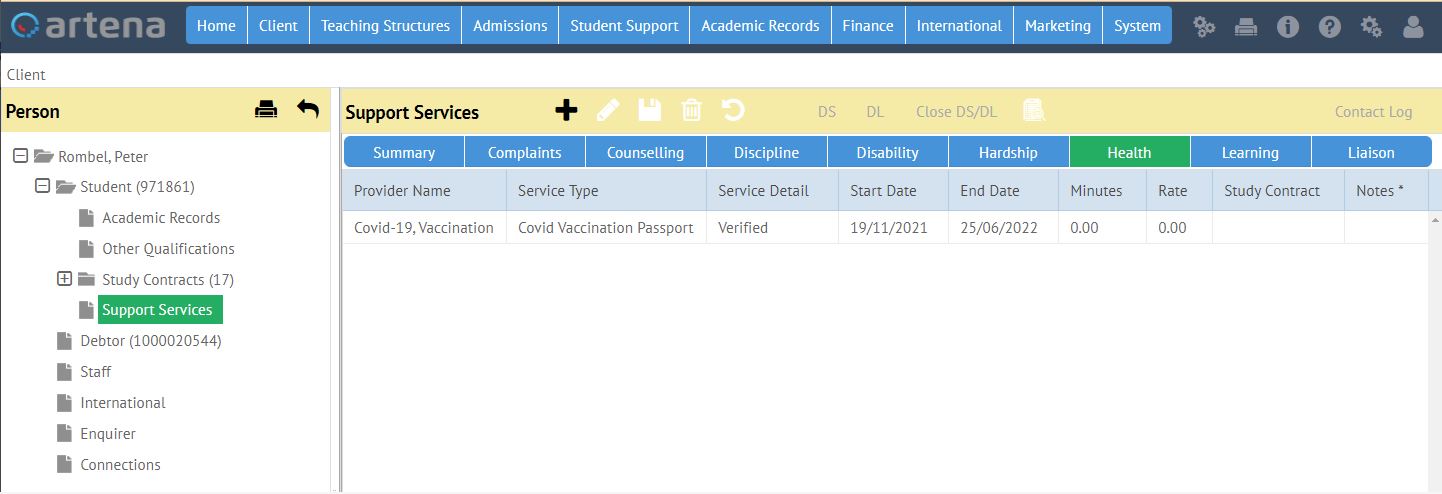
9. Record (if not yet already) if the student requires health support. See Assign a person as a student.
Next Step
After recording a student’s health event, you can:
Add a contact log for the event. See Maintain contact log for person
6. Click on the health record to be edited, which will highlight.
7. Click Edit Item.
Result: The Edit Health Record window displays.
8. Make the required changes to the information. For field descriptions, see Record a student’s health event
9. Click Save to record the information.
Result: The updated information displays in the grid on the Health tab.
6. Click on the health record to be deleted, which will highlight.
7. Click Delete.
8. Click Yes to confirm the deletion.
Result: The health record is deleted from the grid on the Health tab.