Maintain ArtenaSP Resources:
Introduction to ArtenaSP
ArtenaSP stands for Artena Student Portal – it provides a front end for students, backend setup and administration within Artena and a data transfer process between the two. The student portal start page and style sheets (colours, fonts etc.) can be partially customised.
ArtenaSP enhances the student’s experience by allowing online access to information, whether submitting or receiving. To the tertiary education organisation, this translates into cost savings as a result of simpler processing. Organisations will not need to manually enter the information submitted into Artena or process requests for information that is already available to view online.
The ArtenaSP application utilises an MS SQL database separate from that for Artena and with the user interface using HTML5. This will ensure the optimal performance of both databases, allow for better security and provide flexibility for future changes.
Core Functionality
ArtenaSP allows a user to complete the following activities online once authenticated via the login screen:
Update and view personal, contact and address information
View basic enrolment details of their study contacts
View academic results with a status of ‘Complete’
View assessment results published as ‘Final’
View financial summary with invoices and payments
Re-enrol in next term’s programmes and courses
Make a general enquiry and submit feedback
View the progress and received feedback on all the update requests sent
Access useful resource links
A transfer process will automatically (at intervals that can be specified) update Artena with the various requests received via ArtenaSP. These requests are listed in Artena, where it is processed by an Artena user.
The Artena user:
checks the request for completeness
makes any changes to the request
accepts or rejects the request, which will then automatically update other areas of Artena (e.g. automatically update address details without re-entering the information received in the request once accepted).
Setup Access in the Security Administrator
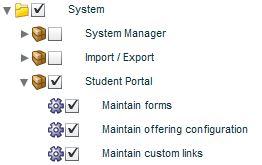
The following security must be configured to give access to maintain the Student Portal and process Student Portal requests.
system
- system.studentportalConfig
- system.studentportalConfig.maintainForms
- system.studentportalConfig.maintainOfferingConfig
- system.studentportalConfig.maintainCustomLinks
admissions
- admissions.onlineEnrolments
- admissions.onlineEnrolments.processOnlineEnrolments
