Contents
Introduction to Debtor Records
The debtors modules allows the set-up and maintenance of debtors and associated transactions, such as invoices, payments, refunds, etc.
In most cases, students will automatically become debtors when they enrol, as an invoice will be generated at that time. See Create enrolment invoice.
Students who are debtors and whose SWArtena account record them as an existing student may view their financial transactions from SWArtena.
For information on non-debtor finance processes, see Introduction to finance.
Setup Access in the Security Administrator
The following security must be configured to give access to manage student debtors.
client.person.student.studyContract.createEnrolmentInvoice
client.person.student.studyContract.contractData.invoices


client.person.debtor
- client.person.debtor.create
- client.person.debtor.view
- client.person.debtor.maintain
- client.person.debtor.reports
- client.person.debtor.writeoff
- client.person.debtor.writeoff.reverse – Lets the user reverse writeoffs
- client.person.debtor.writeoff.correspondence – Lets the user send correspondence for writeoffs
- client.person.debtor.writeoff.correspondence.add – Lets the user create custom correspondence
- client.person.debtor.writeoff.correspondence.add – Lets the user create custom correspondence
- client.person.debtor.contactlog – Lets the user read the contact log for the debtor
- client.person.debtor.contactlog.maintain – Lets the user maintain contact log attached to debtor
- client.person.debtor.contactlog.maintainAll – Lets the user maintain all entries in this contact log
- client.person.debtor.contactlog.delete – Lets the user delete entries in this contact log
- client.person.debtor.correspondence – Lets the user send correspondence for debtor
- client.person.debtor.correspondence.add – Lets the user create custom correspondence

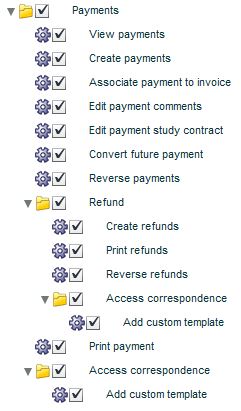
client.person.debtor.payments
- client.person.debtor.payments.view
- client.person.debtor.payments.create
- client.person.debtor.payments.associate
- client.person.debtor.payments.editComments
- client.person.debtor.payments.studyContract
- client.person.debtor.payments.convertFuturePayment
- client.person.debtor.payments.reversePayment
- client.person.debtor.payments.Refund
- client.person.debtor.payments.Refund.create
- client.person.debtor.payments.Refund.print
- client.person.debtor.payments.Refund.reverse
- client.person.debtor.payments.Refund.correspondence – Lets the user send correspondence for refunds
- client.person.debtor.payments.Refund.correspondence.add – Lets the user create custom correspondence
- client.person.debtor.payments.print
- client.person.debtor.payments.correspondence – Lets the user send correspondence for payments
- client.person.debtor.payments.correspondence.add – Lets the user create custom correspondence
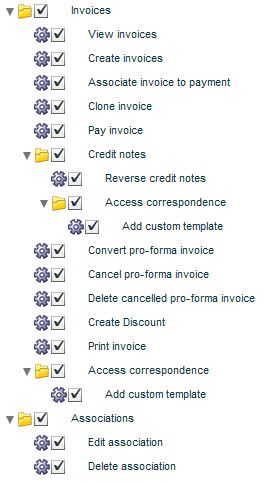
client.person.debtor.invoices
- client.person.debtor.invoices.view
- client.person.debtor.invoices.create
- client.person.debtor.invoices.associate
- client.person.debtor.invoices.clone
- client.person.debtor.invoices.pay
- client.person.debtor.invoices.creditNotes – Lets the user create full, refundable or blank credit notes
- client.person.debtor.invoices.creditNotes.reverse – Lets the user reverse credit notes
- client.person.debtor.invoices.creditNotes.correspondence – Lets the user send correspondence for credit notes
- client.person.debtor.invoices.creditNotes.correspondence.add – Lets the user create custom correspondence
- client.person.debtor.invoices.convertProforma
- client.person.debtor.invoices.cancelProforma
- client.person.debtor.invoices.deleteCancelledProforma
- client.person.debtor.invoices.createDiscount
- client.person.debtor.invoices.printInvoice
- client.person.debtor.invoices.correspondence – Lets the user send correspondence for invoices
- client.person.debtor.invoices.correspondence.add – Lets the user create custom correspondence
client.person.debtor.associations
- client.person.debtor.associations.edit
- client.person.debtor.associations.delete
Debtor Details
To process debtor transactions for the students and organisations in your debtors database, you first need to define them as debtors.
Debtor details are the financial and accounting information relevant to any business transactions conducted through Artena and recorded for each debtor. Debtor transactions include creating invoices, managing payments, recording refunds and creating credit notes. You use the Debtor Details screen to create and maintain debtors in the debtor’s database.
From the Debtor Details screen you can also see a summary of a debtor’s transactions, and record or reverse a write-off of the full balance of a person’s debt. See Create or maintain debtor details.
Debtor Transactions
The Debtor Transactions area shows a debtor’s transactions in three views, each on a different tab:
All Transactions
Invoices
Payments.
A user can often perform the same task from any of the three tabs.
The main panel on each tab is a list of transactions, in a tree format. The following symbols are used to indicate the structure of items (transactions) within the tree:
Symbol | Indicates… |
|---|---|
A right arrow beside an item in the tree indicates that the item is a ‘parent’ item, with a number of components hidden beneath it. To view them, click on the , or double-click on the item name. | |
A down arrow beside an item indicates the item is fully open, with no items hidden beneath it. To close the item, click on the , or double-click on the item name. | |
If there is nothing next to the item, the item has no associated ‘children’ items. |
Each item (transaction) in the tree is represented by an icon:
Icon | Transaction |
|---|---|
Credit note | |
Credit note reversal | |
Invoice | |
Payment | |
Payment assignment | |
Payment reversal | |
Refund | |
Refund reversal | |
Write-off | |
Write-off reversal | |
Proforma Invoice | |
Cancelled Proforma Invoice |
As well as the icon, each transaction in the tree (list) displays:
the transaction number
the date the transaction was entered
the total amount of the transaction
the amount outstanding (if an invoice) or unassigned (if a payment)
a comment (if a refund or credit note).
Click to select a transaction in a tree (list) and the Detail and GL Entries tabs on the right-hand side panel automatically populate with detail relevant to the selected transaction. Up to two additional panels at the bottom of the screen may also display relevant information. See the example below.
Generate Invoices
An invoice is an itemised account informing debtors of costs incurred in the administration of their study contract. It is also a request for payment of those costs.
Most invoices that are created in Artena are enrolment invoices, which are created in the Study Contracts area. Invoices created in debtors are called miscellaneous invoices.
Enrolment invoices
Once a person’s study contract has been created, the components added, and the validations are complete, an invoice needs to be sent to the student. The options for generating the enrolment invoice are as follows:
Option | Description |
|---|---|
Create Full Invoice | You create an invoice for all fees attached to the study contract and enrolled courses, including those already invoiced. |
Create Invoice for Selected Components | You create an invoice for all fees attached to selected study contract components. |
Re-invoice in Full and Transfer Payments | You create an invoice for all fees attached to the study contract and enrolled courses; credit any previous invoices and transfer payments associated to previous invoices. Use this when the study contract has changed so much that creating a fresh invoice and transferring existing payments will take less time than manually processing each item. Before choosing this option, be aware of the effect on associated invoice items. |
See Create enrolment invoice.
Miscellaneous invoices
Miscellaneous invoices are invoices for items that are not enrolment-related (like course fees or course materials) but are for miscellaneous items, like library fees or NZQA Hook-On fees. See Generate invoice.
Pro-forma invoices
A pro-forma invoice is an invoice issued for goods and services to be supplied at a later date than when the invoice is issued. Pro-forma invoices are issued because, in general accounting practice, the service provider needs to account for payments for goods and services that are planned for a later date.
For example: A student has enrolled in November for a full-year programme next year. The tertiary education organisation will produce a pro-forma invoice for the student in November. This invoice will not have General Ledger (GL) transactions recorded for it, as it is not yet an actual invoice. In January, when the end-of-year processes are activated and the pro-forma invoices are converted to actual invoices, the invoice becomes current, and the system creates GL transactions for it.
See Generate invoice.
Manage Payments
When a payment is received from a debtor, you need to record the transaction in the debtor’s account. This is done in one of two ways:
Enter New Payment: This method lets you:
record a payment for an invoice or group of invoices, but associate the payment to the invoice(s) later.
record a payment that is not relevant to any invoice currently in the system. You may need to do this because the debtor sent in a payment prior to being invoiced, or made an overpayment and is therefore in credit.
Pay This Invoice: This method lets you directly pay an amount or part of an amount of an invoice that you have selected.
If you have used the ‘Enter New Payment’ method to record a payment, you need to associate the payment to an invoice or invoices later.
To record and reverse payments, and manage associations of payments to invoices or invoice line items, see Manage payment.
Manage Refunds
A refund is used when money needs to be returned for an actual payment, i.e. a refund alters the payment amount. The refunds section of the system allows you to record and reverse refunds. See Manage refund.
Manage Credit Notes
A credit note is a record of an amount that is, or is about to be, credited to a debtor. A credit note has the effect of reversing an invoice, i.e. a credit note alters the invoice amount. You need to create a credit note if you have sent an invoice to a debtor in error, or assigned invoice items incorrectly to an invoice.
In the system, there are three types of credit note:
Full: all invoice items are generated as credit note items.
Refundable: all invoice items that have a refundable fee type are generated as credit note items.
Blank: no credit note items are generated. Instead you manually select the invoice items to be credited.
See Manage credit note.