Contents
- 1 Introduction to LLN
- 2 Setup Access in the Security Administrator
- 3 LLN Reports
- 4 Process LLN
- 4.1 Create Bulk Upload File (LLN)
- 4.2 When to use
- 4.3 What to do
- 4.4 What next
- 4.5 Process Result Files
- 4.6 When to use
- 4.7 Before you begin
- 4.8 What to do
- 4.9 View Learner Gain Information
- 4.10 When to use
- 4.11 Before you begin
- 4.12 What to do
- 4.13 Identify Non-attempt of Assigned Assessment/s
- 4.14 Before you begin
- 4.15 When to use
- 4.16 What to do
Introduction to LLN
The Literacy and Numeracy for Adults Assessment Tool is an online adaptive tool primarily designed to provide robust and reliable information on the reading, writing, numeracy and vocabulary skills of adults. This information informs the development of learning interventions that match learners’ needs and strengthen their literacy and numeracy skills. The Assessment Tool also allows learners to track their progress over time and enable educators and providers to report on the progress made by groups or cohorts of learners. Further overview and background information is available here.
Setup Access in the Security Administrator
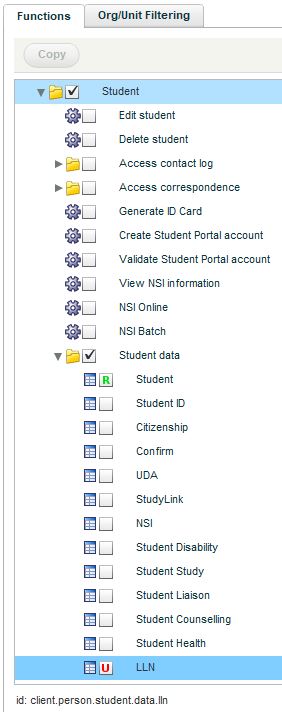
The following security must be configured to give access to LLN.
admissions.scDashboard.contract
admissions.studylink

system.importExport.gainReport

client.person.student.data.lln
LLN Reports
The following reports are applicable for LLN:
Academic Records > Dashboard > Gain Report by OTE
Academic Records > Dashboard > Learner Non-attempt of Assessment
Process LLN
Create Bulk Upload File (LLN)
Admissions > Dashboard

When to use
Create a Comma Separated Value (CSV) bulk upload file that meets Literacy and Numeracy for Adults Assessment Tool (LNAAT) file specification, from offered teaching (OTE) in Artena.
What to do
1. From the Artena Home page navigate to Admissions > Admissions Dashboard.
2. Select appropriate OTE(s) from the Entry dropdown field and click Add to selection.
3. Click the Search button
Result: A list of all enrolled students is displayed.
4. From the Actions list select LLN
5. Click Perform Action
6. Select the appropriate LLN parameter grouping(s) i.e. OTE Name, OTE Venue or OTE Year. Artena will auto select ‘OTE Year’ as the default.
7. Select the enrolment statuses to be included in the bulk upload file. Artena will auto select ‘Enrolment accepted’ (EA) as the default.
8. Click the ‘Save’ button.
9. Click OK to Proceed with processing.
Result: The File Downloader displays and allows the file to be downloaded and saved the CSV file to desired location.
What next
The bulk upload CSV file can be uploaded to the LNAAT website.
Process Result Files
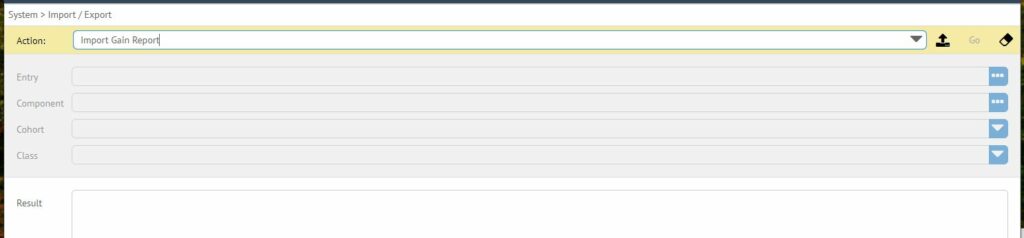
System > Import/Export > Import Gain Report
When to use
Use these steps to import the gain reports from the Literacy and Numeracy for Adults Assessment Tool (LNAAT). Gain reports store learner assessment results in the student record, such as ability score, level gain, elapsed time etc. for future reference.
Before you begin
Ensure the latest gain report is downloaded from the LNAAT site.

- Artena will only accept non modified gain reports from LNAAT.
- Records with mismatched NSNs will be rejected.
What to do
1. Select System > Import/Export
2. In the Action field select Import Gain Report.
3. Click the Upload records button and browse for the most recent downloaded gain report CSV file.
4. Click the Go button once the gain report file has been located.
Result: The gain report will be validated and will be imported into Artena if no errors are present.
View Learner Gain Information
Client > Person > Student > LLN

When to use
Use these steps to view uploaded learner gain report information.
Before you begin
Ensure that the latest gain report(s) has been uploaded, see Process Result Files.
What to do
1. Search for a learner in Artena that has had their LLN results uploaded via a gain report import.
2. Navigate to Client > Person > Student > LLN tab.
3. Expand the contract folder(s) to view results.
Results can also be viewed by running the Gain Report by OTE report:
1. Navigate to Academic Records > Dashboard.
2. Search for a group of students.
3. Click the Print button.
4. Locate report Gain Report by OTE.
5. Select appropriate reporting year and OTE offerings.
6. Run the report.
Result: The report displays.
Identify Non-attempt of Assigned Assessment/s
Before you begin
Ensure that the latest gain report(s) has been uploaded, see Process Result Files.
When to use
Latest Gain Report must be uploaded into Artena before a report can be generated to identify learners that have not attempted an assigned assessment(s).
What to do
1. Navigate to Academic Records > Dashboard.
2. Search for a group of students.
3. Click the Print button.
4. Select report Non-attempt of Assigned Assessment.
5. Select appropriate reporting year and OTE offerings.
6. Run the report.
Result: The report displays.